Getting Started - Add Projects And Project Groups
Projects are used to collect all the assets that make up your deployment processes. To deploy our simple hello world script, we first need a project.
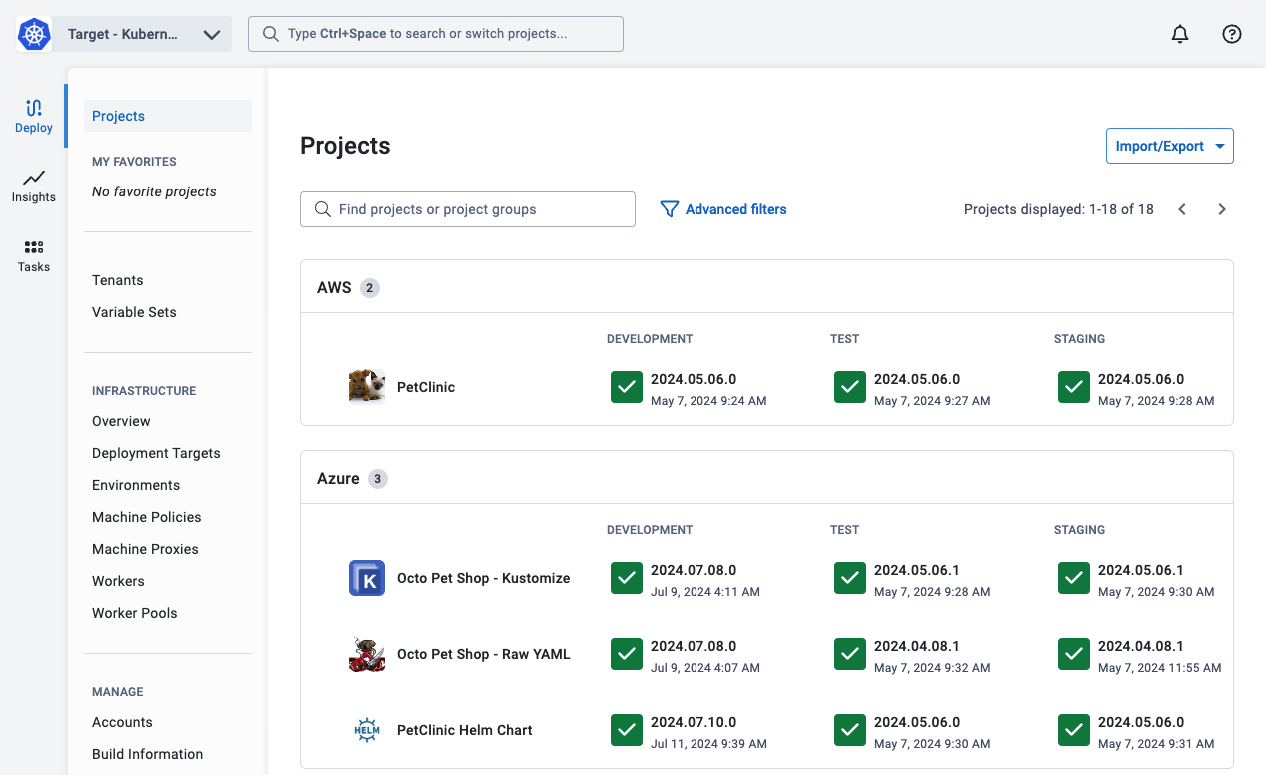
- Navigate to the Projects tab, and click ADD PROJECT.
- Give the project a name, for instance, Hello, world, and click Save.
Optional
By default, Octopus Deploy will store the deployment process, runbook process, and variables in the back-end SQL Server. From Octopus 2022.1, you have the option to store the deployment process in a git repository.
The ability to store runbook processes and variables will be added in future versions.
To configure the project to use version control:
- Select the option Use Version Control for this project
- Click Save and Configure VCS
- Enter the git repository URL and credentials.
- Click Test to verify the connection.
- Click Save to save the VCS information.
Learn more about config as code.
The next step will create a runbook in the newly created project.
Further Reading:
For further reading on Runbooks and projects please see: