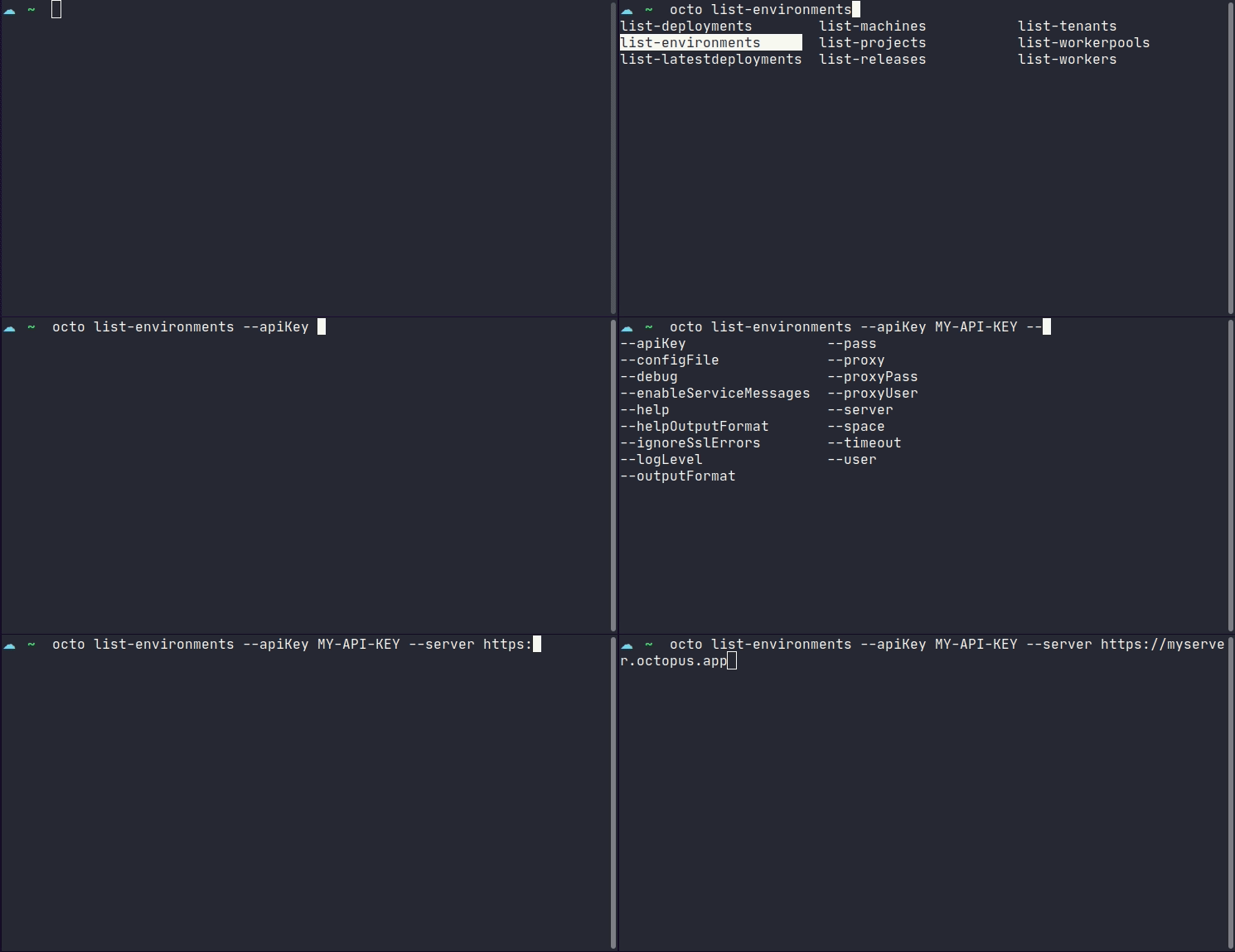
Install a shell auto-complete script into your shell profile, if they aren’t already there. Supports pwsh, zsh, bash, and PowerShell.
install-autocomplete options
Install a shell auto-complete script into your shell profile, if they aren't already there. Supports pwsh, zsh, bash & PowerShell.

Usage: octo install-autocomplete [<options>]

Where [<options>] is any of:

Install AutoComplete:

      --shell=VALUE          The type of shell to install auto-complete
                             scripts for. This will alter your shell
                             configuration files. Supported shells are Bash,
                             PowerShell, Pwsh and Zsh.
      --dryRun               [Optional] Dry run will output the proposed
                             changes to console, instead of writing to disk.

Common options:

      --help                 [Optional] Print help for a command.
      --helpOutputFormat=VALUE
                             [Optional] Output format for help, valid options
                             are Default or Json
Tab completion for commands and options
Tab completion is available for the following shell environments: powershell, pwsh (PowerShell Core), bash & zsh. This feature requires that octo or Octo is available from your $PATH, which is the default state if installed via a package manager or Chocolatey. If you’ve manually installed the CLI, please ensure your $PATH is also updated if you wish to use this feature. This is an optional feature that requires additional installation steps on a per-user basis, since this feature relies on built-in shell auto-completion facilities.
Additional installation steps for tab completion.
- Check that
octois available on your path:
which octoThis should return a valid location on your path like /usr/bin/octo.
- Install tab completion scripts into your profile, choosing from
powershell,pwsh,bashorzsh:
octo install-autocomplete --shell zshTips:
- If you’re using PowerShell on Windows use
powershell. If you’re using PowerShell Core on Windows, Mac or Linux, usepwsh. - You can review changes to your profile without writing to disk by using the
--dryRunoption:
octo install-autocomplete --shell powershell --dryRun- Either restart your shell environment or ‘dot source’ your profile:
Bash
. ~/.bashrcZsh
. ~/.zshrcPowerShell
. $PROFILE- You can now discover sub-commands by typing
octo [search-term]and hitting the [tab] key. If you don’t provide a search term, the full list of available sub-commands will be shown.